

What it is
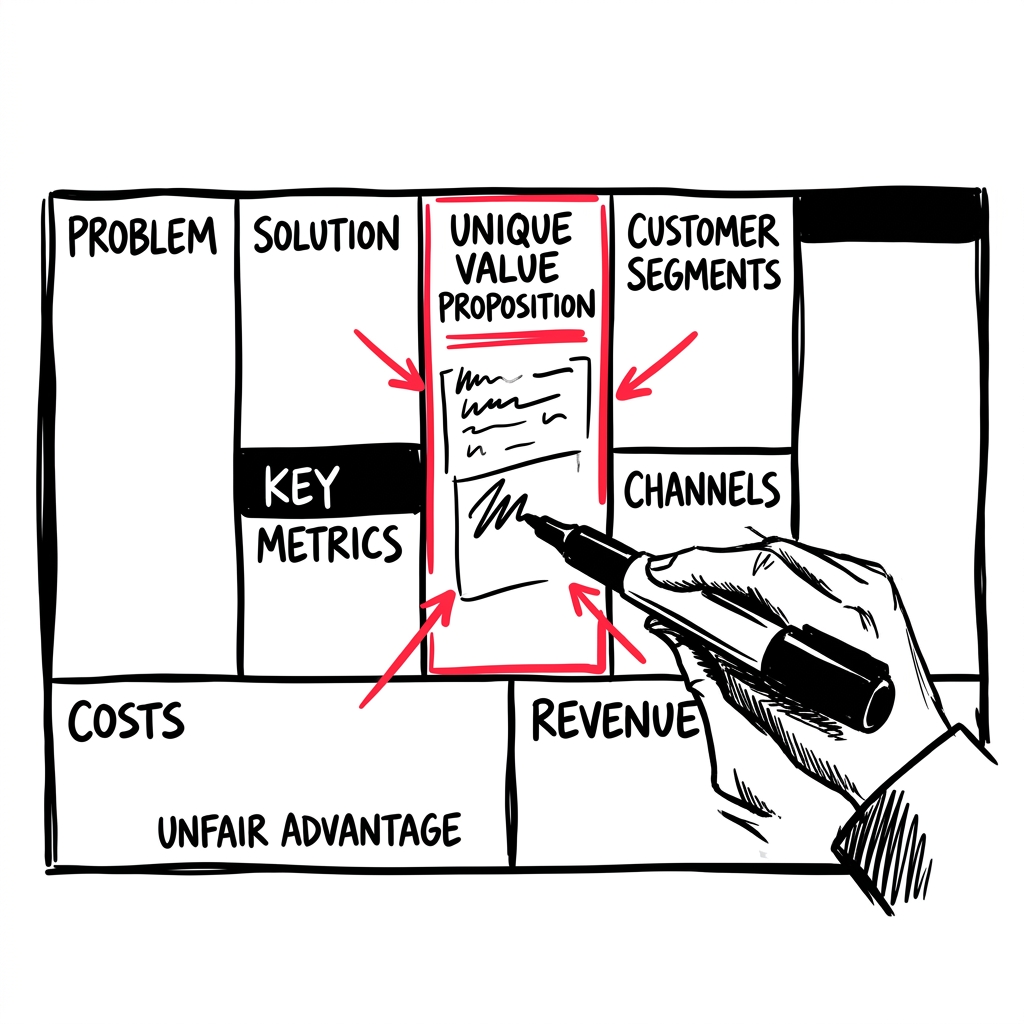
The Canvas is your Lean Canvas editor — a one-page business model that captures your problem, solution, customer segments, unique value proposition, and more. It’s the core artifact that LEANSpark helps you build and refine.
How to get there
Click the canvas preview in chat, or ask LEANSpark “show me my canvas.” The canvas opens as a full-screen overlay.
What you’ll find
Canvas editor
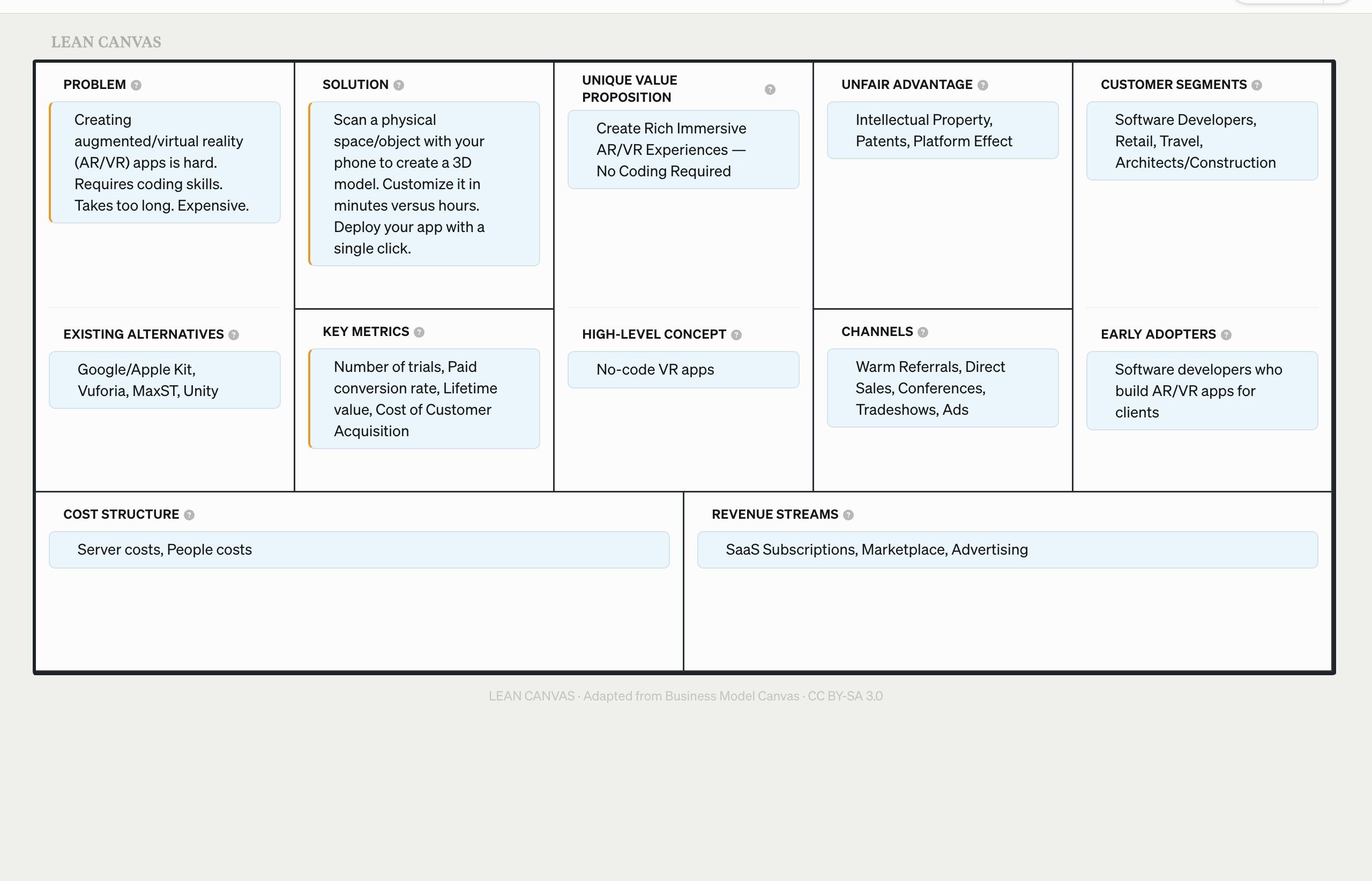
- Grid layout — the classic Lean Canvas grid with all 9 sections (Problem, Customer Segments, Unique Value Proposition, Solution, Channels, Revenue Streams, Cost Structure, Key Metrics, Unfair Advantage)
- Inline editing — click any section to edit its contents directly
- AI quick actions — contextual suggestions from LEANSpark for improving each section
- Dimension filters — filter chips to highlight sections by dimension (Clarity, Desirability, Viability, etc.)
Versions
Your canvas is versioned automatically. You can view past versions and restore any previous state.
Variants
Your business model can have multiple variants — different pivot directions or market segments you’re exploring. Switch between variants from the context bar at the top.
Panzoom view (experimental)
A Miro-style zoomable canvas view for exploring your business model spatially.
Common questions
Q: How do I edit my canvas? Open the canvas and click on any section to edit it. You can also ask LEANSpark to update specific sections during chat.
Q: Can I undo changes to my canvas? Yes — go to canvas Versions to see your history and restore any previous version.
Q: What are variants? Variants are alternative versions of your business model. For example, you might have one variant targeting consumers and another targeting businesses. Switch between them from the context bar.
Q: How do I export my canvas? From the chat, ask LEANSpark to export your canvas, or use the export option from the canvas view.
Q: Can LEANSpark fill in my canvas for me? Yes — during chat, LEANSpark can suggest content for any canvas section based on your conversation. You can also import from a URL, pitch deck, or description to auto-populate.
Related features
- Getting Started — importing your initial canvas
- Dashboard — canvas state feeds into your validation dashboard
- Library — canvas exports saved as artifacts